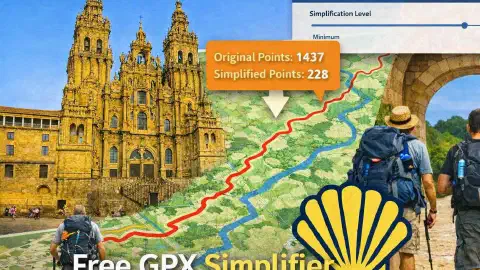
Free GPX Simplifier: Reduce Track Points and Save Battery on the Camino
Posted: | Updated:
Reading time: 12 minutes
Posted: | Updated:
Reading time: 12 minutes


By: Simon Kemp , Editor
GPX Simplifier: make your route files smaller and save phone battery
Every time you walk with your phone or GPS watch, it records your position. Imagine someone dropping a breadcrumb every second of your walk. After one day on the Camino, you might have 15,000 or 20,000 breadcrumbs. After a whole week, even more.
That is what a GPX file is. A long list of points that together form your route.
The problem is that big files with lots of points can:
- Drain your phone battery faster because your device has to work harder
- Load slowly when you open them on your phone or watch
- Be too big for some older GPS devices to handle
- Take longer to share with other pilgrims
The GPX Simplifier fixes this by removing unnecessary points while keeping your route looking the same. It is like taking a wobbly hand-drawn line and smoothing it out, without changing where it goes.
This tool is one of our free GPX Tools.
This guide explains everything in plain English, even if you have never used a tool like this before.
🧰 What the GPX Simplifier can do for you
Here is a simple overview of every feature. Do not worry if some terms are new. We explain them below.
| Feature | What It Means | Who It Helps |
|---|---|---|
| Load a GPX file | Pick a route file from your computer | Everyone starting with a route |
| Drag and drop | Drag a file straight onto the map | Anyone who finds clicking easier |
| Light simplification | Removes a few points, keeps almost all the detail | Pilgrims who want a modest file size reduction |
| Medium simplification | Removes enough points to make a difference, keeps the route shape | Most pilgrims (the recommended option) |
| Strong simplification | Removes many points, makes the file very small | Pilgrims with limited space or battery concerns |
| Custom slider | A sliding control where you set exactly how much to simplify | People who want fine control |
| Keep your markers (waypoints) | Your saved places (albergues, cafes) stay even after simplifying | Anyone who added markers to their route |
| Keep albergue markers | Protect the places you plan to sleep | Anyone who booked accommodation |
| Keep town markers | Town names stay on the map | Anyone using towns for navigation |
| Keep stage splits | If your route is split into days, the splits stay | Anyone walking multi-day stages |
| Keep sharp turns | Important corners are not smoothed away | Cyclists and anyone on tricky paths |
| Save your settings | Store your favourite simplification choices for later | People processing many files |
| Load your settings | Use your saved settings again | Quick processing of new files |
| Simplify button | The main button that does the work | Everyone |
| Process many files at once | Select multiple files and simplify them all together | Pilgrims preparing a whole Camino route |
| See the before and after | Shows how many points you had and how many remain | Everyone who wants to see the result |
| See the reduction percentage | Tells you how much smaller the file is | Anyone curious about the improvement |
| Compare distance | Shows the route length before and after (should be almost the same) | Checking the route is still accurate |
| See the maximum error | Shows the furthest the simplified route strays from the original | Technical users checking quality |
| Download the simplified file | Save the new, smaller file to your computer | Everyone |
| Start Over button | Clear everything and start with a new file | Processing multiple routes |
| Keyboard shortcuts | Press Ctrl+O to open, Ctrl+S to simplify, Ctrl+D to download | People who prefer using a keyboard |
| Collapse the control panel | Hide the side panel to see more of the map | Getting a bigger view of your route |
| Coloured lines on the map | Original route in one colour, simplified in another | Seeing the difference visually |
| Works in your language | Buttons adapt to Spanish, French, German, and more | International pilgrims |
1. 🪄 What the GPX Simplifier does (in plain English)
The GPX Simplifier is a file dietitian. It takes your route file and makes it smaller without changing where the route goes.
How it works (simple version):
Imagine you drew a route on a map using 100 dots. Between those dots, you have straight lines. If the route goes along a long, straight road, you do not need a dot every metre. You only need a dot at the start of the straight section, one at the end, and maybe a few in between if the road bends.
That is what the Simplifier does. It removes the dots you do not need and keeps the ones that matter.
What you can do with it:
- Load a GPX file from your computer
- Choose how much you want to simplify it
- Tell the tool to keep important markers (like albergues)
- See how many points were removed
- Download the smaller, cleaner file
What it is NOT for:
- It is not for viewing route details (use the GPX Viewer for that)
- It is not for editing names or markers (use the GPX Editor for that)
- It is not for drawing new routes (use the GPX Builder for that)
2. 🔋 Why you would want a smaller file
We asked pilgrims why they care about file size. Here is what they told us.
Battery life
Your phone uses power to draw the route on the screen. More points mean more work for your phone. Less points mean more battery left at the end of a long walking day. On a 25 kilometre day, that extra battery could be the difference between your phone lasting or dying before you reach your albergue.
Speed
When you open a route on your phone, it has to read every point. A file with 20,000 points takes longer to load than a file with 2,000 points. When you are standing at a junction trying to check your direction, you want the route to appear instantly.
Device limits
Some older GPS watches and devices can only handle a certain number of points. If your file is too big, your device might refuse to load it. Simplifying the file makes it work on almost any device.
Sharing
If you want to send a route to a fellow pilgrim by email or WhatsApp, a smaller file sends faster and uses less data.
3. 🗺️ What you see when you open the tool
When the page loads, you see:
The title at the top – It says “GPX Simplifier” with a short sentence explaining the tool.
The big map – This takes up most of the screen. Once you load a file, it will show your route. After simplifying, it will show both the original (in one colour) and the simplified version (in another colour) so you can compare.
The floating panel on the right – This small box contains all the controls. You can hide it by clicking the “minus” button if you want to see more of the map.
4. 📋 A closer look at the floating panel
4.1. Loading your file
At the top of the panel, you see:
- A button that says “Choose File” or similar
- A space showing the name of the file you chose
- A small hint that says you can also drag and drop a file onto the map
Click the button, find your GPX file on your computer, and select it. The map will zoom to show your route.
4.2. 🎚️ Choosing how much to simplify
This is the main decision you need to make. There are four options presented as buttons:
- Light – Removes the least points. Your file gets a bit smaller, but the route keeps almost all its detail. Use this if you want to be very careful.
- Medium – The recommended choice for most people. Removes enough points to make a real difference without changing the shape of the route. Start here.
- Strong – Removes many points. Your file becomes very small. Use this if you have an older device or are very worried about battery life.
- Custom – Lets you choose exactly how aggressive the simplification should be using a sliding control.
4.3. The custom slider
If you choose “Custom”, a slider appears. You drag it left or right.
- Drag left: gentler simplification, keeps more detail
- Drag right: stronger simplification, removes more points
- The number on the slider is the “tolerance” in metres. A tolerance of 10 metres means the simplified route will never be more than 10 metres away from the original.
A tolerance of 5 to 20 metres is good for most Camino routes. You would not notice the difference on the ground.
4.4. ✅ Keeping the things that matter
These are checkboxes that protect certain parts of your route from being simplified away:
- Keep albergues – If you added markers for places you plan to sleep, tick this box so they stay.
- Keep towns – If your route has town markers, tick this box so they are not removed.
- Keep waypoints – This keeps all markers, no matter what type. Tick this if you added any notes or pins to your route.
- Keep stage boundaries – If your route is split into daily stages (Day 1, Day 2, etc.), tick this box so the splits stay.
- Keep sharp turns – This protects important corners and junctions. Tick this if you are cycling or navigating complex paths.
Simple rule: If you added markers to your route, tick “Keep waypoints”. That way, the Simplifier only removes track points, not your important notes.
4.5. Saving your favourite settings
If you process files often, you can save your settings:
- Click Save Preset to store your current choices
- Next time, click Load Preset to use them again
This saves time when simplifying many files.
4.6. ⚡ The Simplify button
The big button that says “Simplify GPX”. It is greyed out until you load a file. Click it when you are ready. A spinning circle appears while the tool works.
4.7. Processing many files at once
If you have 20 or 30 stage files for your whole Camino, you do not need to do them one at a time. Click the Batch Process button, select all your files, and the tool simplifies them all with the same settings.
4.8. 📊 The results panel
After simplifying, a panel appears with the following information:
- Original points – How many points your file had before
- Simplified points – How many points remain now
- Reduction – The percentage of points that were removed (for example, “85% reduction” means the file is much smaller)
Below that, you can also see:
- Distance before and after – The route length. These numbers should be almost the same. If they are very different, the simplification was too strong.
- Maximum error – The furthest the simplified route strays from the original. For Camino routes, anything under 20 metres is fine.
Two buttons appear at the bottom:
- Download Simplified GPX – Saves the new, smaller file to your computer
- Start Over – Clears everything so you can load a new file
4.9. Keyboard shortcuts (optional)
If you like using your keyboard:
- Press Ctrl+O to open a file
- Press Ctrl+S to simplify
- Press Ctrl+D to download
5. 👣 How to use the GPX Simplifier, step by step
Step 1: Load your route file
Click the Choose File button. Find the GPX file on your computer and select it. Or drag the file from your computer and drop it onto the map.
The map will show your route. The file name appears in the panel.
Step 2: Pick a simplification level
Start with Medium. It is the recommended choice and works well for most Camino routes.
If your file is very large (over 10,000 points), try Strong. If you want to be very careful, try Light.
Step 3: Tick the boxes for things you want to keep
If your route has markers (waypoints), tick Keep waypoints. This is the most important box for most pilgrims.
If your route is split into daily stages, tick Keep stage boundaries.
Step 4: Click Simplify
Click the Simplify GPX button. Wait a moment while the tool works.
Step 5: Check the results
Look at the numbers:
- How many points were removed? If it is over 80%, the file will be much smaller.
- Is the distance still the same? It should be nearly identical.
- What is the maximum error? If it is under 20 metres, you will never notice the difference.
Zoom in on the map to see the two lines (original and simplified). They should be very close together.
Step 6: Download the new file
Click Download Simplified GPX. The file saves to your computer with a name similar to the original.
Step 7: Repeat for your other files
Click Start Over and load the next file. Or use the Batch Process button to do many files at once.
6. 🥾 Real examples of how pilgrims use this tool
Before leaving home
Rosa has downloaded 30 stage files for the Camino Frances. She opens the Simplifier, chooses Medium, ticks “Keep waypoints”, and processes all 30 files using the Batch button. She downloads all the simplified versions and transfers them to her phone. Her battery lasts noticeably longer on the trail.
After getting a file from a friend
Jorge’s friend sends him a GPX file recorded on a Garmin watch. The file has 25,000 points. Jorge opens it in the Simplifier, applies Medium simplification, and the file drops to 3,000 points. The distance is still the same. He saves the smaller version to his phone.
For an older GPS device
Claire has an older GPS handheld that cannot load files with more than 5,000 points. She uses the Simplifier with Strong mode to make sure every file works on her device.
7. 💡 Simple tips for good results
- Start with Medium – It is the best balance for almost everyone.
- Always keep your markers – Tick “Keep waypoints” if you added any notes to your route.
- Check the distance after – The distance should be almost the same. If it changed a lot, try a gentler setting.
- Keep your original files – Save the original files somewhere safe. Simplified files have fewer points, so you might want the originals as backups.
- Test on your device – Load one simplified file into your phone or GPS and make sure it works before doing all your files.
- Use Batch for multiple files – If you have many stages, the Batch button saves a lot of time.
8. ✅ Quick summary
The GPX Simplifier makes your route files smaller so your devices work better and your battery lasts longer.
- If you are new, it means: “My phone battery lasts longer and my routes load instantly.”
- If you have walked before, it means: “I can process my whole Camino in minutes and walk with confidence.”
All of our GPX tools live on our Camino Resources Hub, along with other helpful planning materials for your Camino. This tool is part of the full Camino GPX Tools suite.
GPX Simplifier Video
Join Us & Get Your Free Downloads!
Signup to our newsletter today to get your free Camino downloads. Get notified about new updates & deals.
